


Resaltando la belleza de la madera: secado de chapa con control de humedad
La Punto de Rocío y Temperatura DMP5 Vaisala DRYCAP® está diseñada para la medición de humedad en línea en aplicaciones de secado industrial con…
Nota técnica
When loggers disappear overnight in the MadgeTech 4 software and are seemingly nowhere to be found, this is a legitimate cause for concern.
La Punto de Rocío y Temperatura DMP5 Vaisala DRYCAP® está diseñada para la medición de humedad en línea en aplicaciones de secado industrial con…

El Dr. Lauri Reuter es una experta en el futuro de los alimentos y la persona a quien preguntar si alguna vez te has preguntado qué vamos a comer en…

Las empresas industriales continúan tomando medidas para minimizar sus emisiones de carbono. Muchos están reduciendo el uso de combustibles fósiles y…
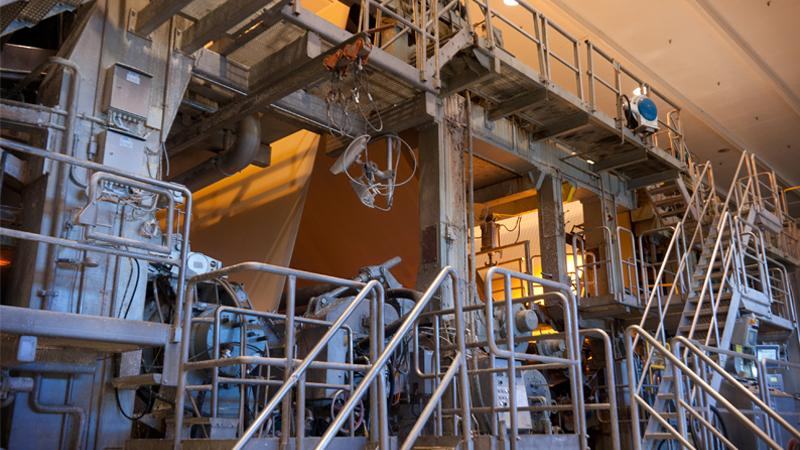
En el proceso de caustificación, los químicos pasivos se convierten en químicos de cocina activos para producir licor blanco. Se utiliza en el…
Un especialista responde con la solución, el instrumento y el servicio que corresponden.
Productos para cotizar
Todavía no hay productos. Se puede escribir igual: un especialista responde.