

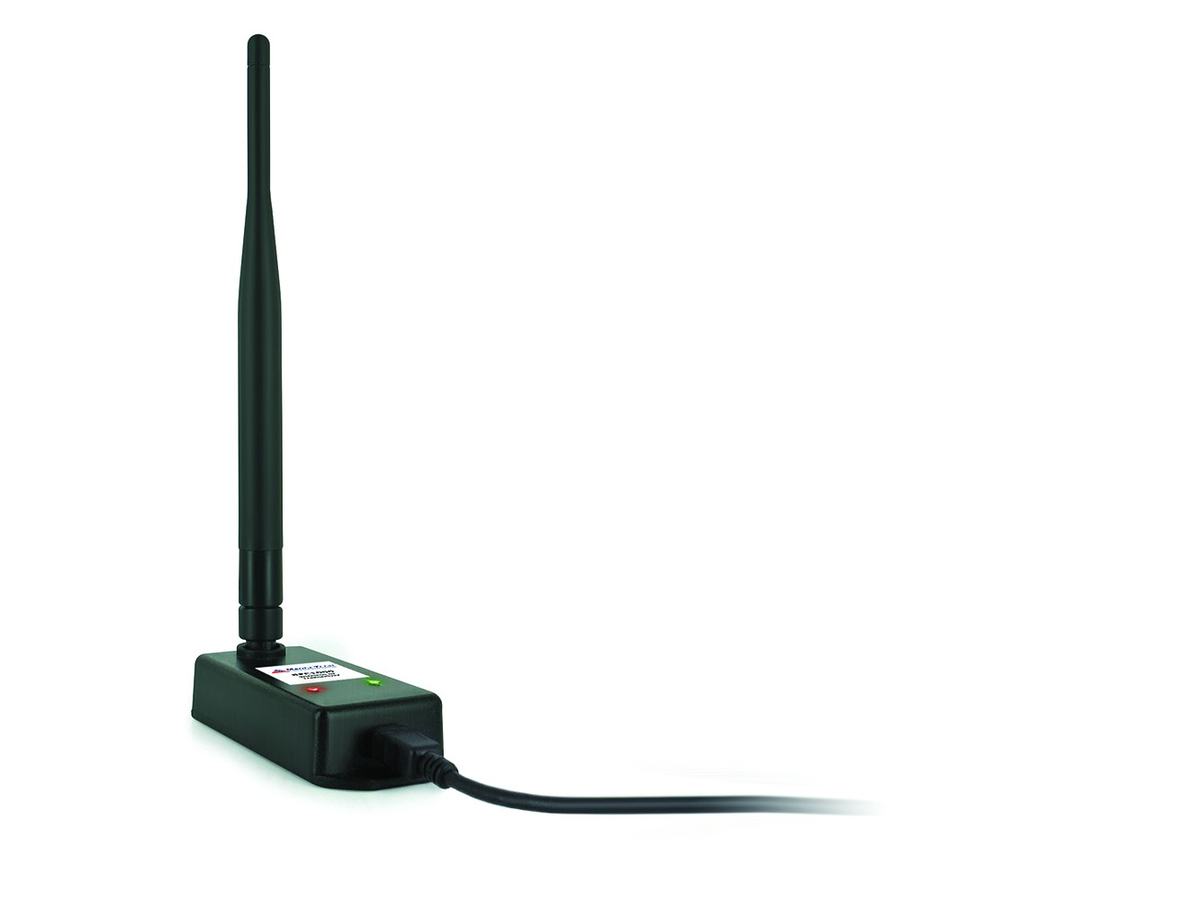
RFC1000 Wireless Transceiver
Wireless transceiver for the RFOT and RF2000A series.
Nota técnica
The software displays “No devices are connected. Why are my devices not appearing?” – MadgeTech 4
This generic error occurs when a data logger fails to connect to the software. There are several potential causes.
1) The interface cable may not be plugged into the computer.If the interface is an IFC200 (flash drive model), it is plug and play and there is no need to install the device drivers. If the interface is the older IFC200 R1 (Rectangular box with two wires), IFC202, IFC300, IFC400, or a RFC1000, install the USB drivers first. Disconnect the IFC from the computer, download the USB drivers from the software download page above, extract the files from the downloaded ZIP folder, and run the PreInstaller.exe from within the new folder. This will install the updated drivers. Connect the IFC to the computer and Windows will apply the driver. At this point, the blue LED should light up on the IFC. The RFC1000 has a red LED to indicate power and a flashing green LED to indicate communication with wireless logger.
MadgeTech 4:Verify the interface cable is correctly installed, by checking that it shows up under Detected Interfaces in File > Options > Communication. Check the box labelled “Search for devices using USB interfaces.” Connect the logger to the IFC. If successful, the logger appears in the Connected Devices panel.
Claim Wireless loggers from the list of active data loggers. Uncheck the box labelled “Only show claimed wireless devices.” Select the desired logger from the list and click the Claim icon.
MadgeTech 2:Select Auto Configure Port from the Communications menu to communicate with the logger. If successful, the software displays “Found a <logger model> on <communication port>” where the logger model is the name of the type of data logger, and the communications port is the one used by the IFC. If unsuccessful, manually connect the logger. Go to the Communications Menu and select the Baud Rate specified on the device. Go to Communications and select the Comm Port. Typically, the Comm Port is USB1 if the interface is a IFC200/202/300/400. If using an IFC110, the COM# for the Communication Port will be specified in the Ports section of Device Manager.
Include as much information as possible by listing all attempted troubleshooting. Specify the data logger model, the interface cable, the PC operating system, the software version and drivers (File > Options > About in MadgeTech 4, or Help > About in MadgeTech 2).
Wireless transceiver for the RFOT and RF2000A series.
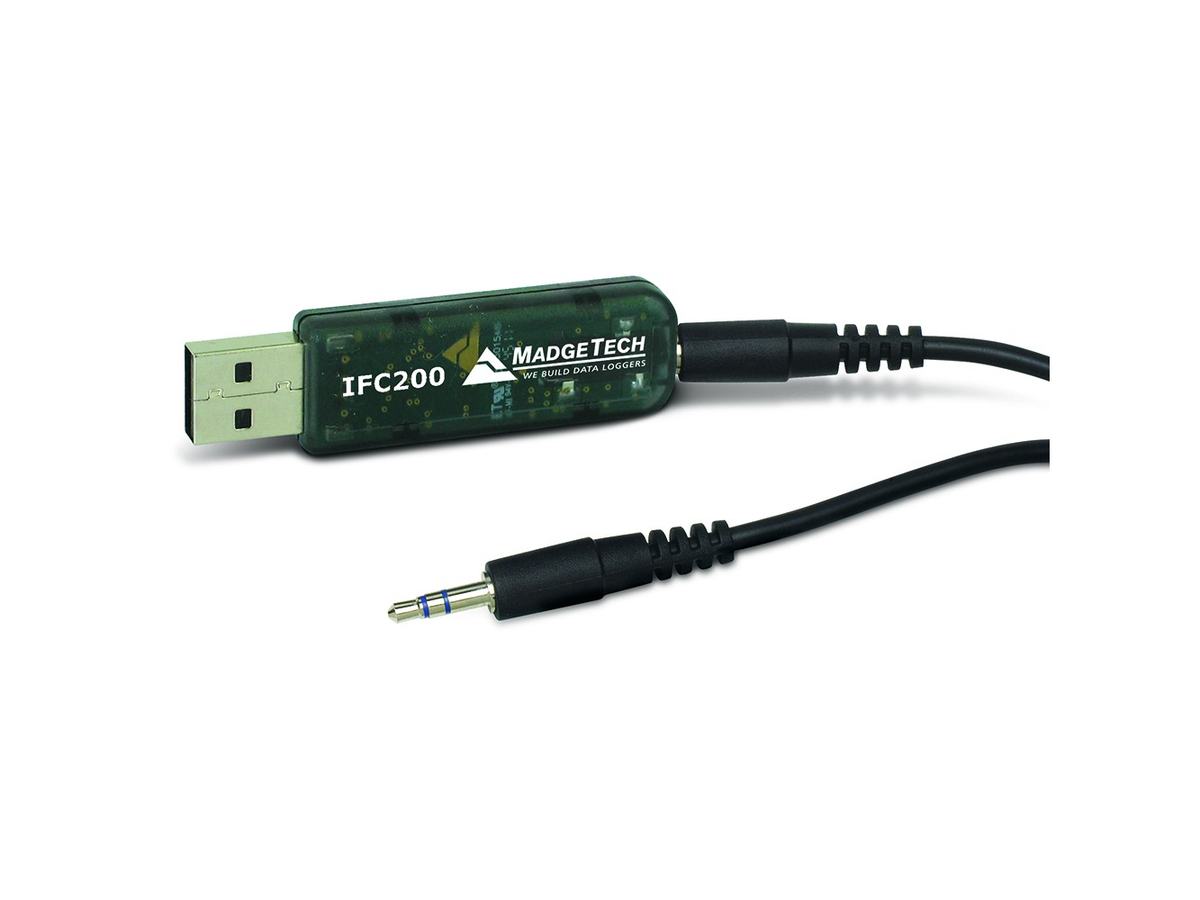
USB Interface Cable Package for Standard Series Data Loggers.
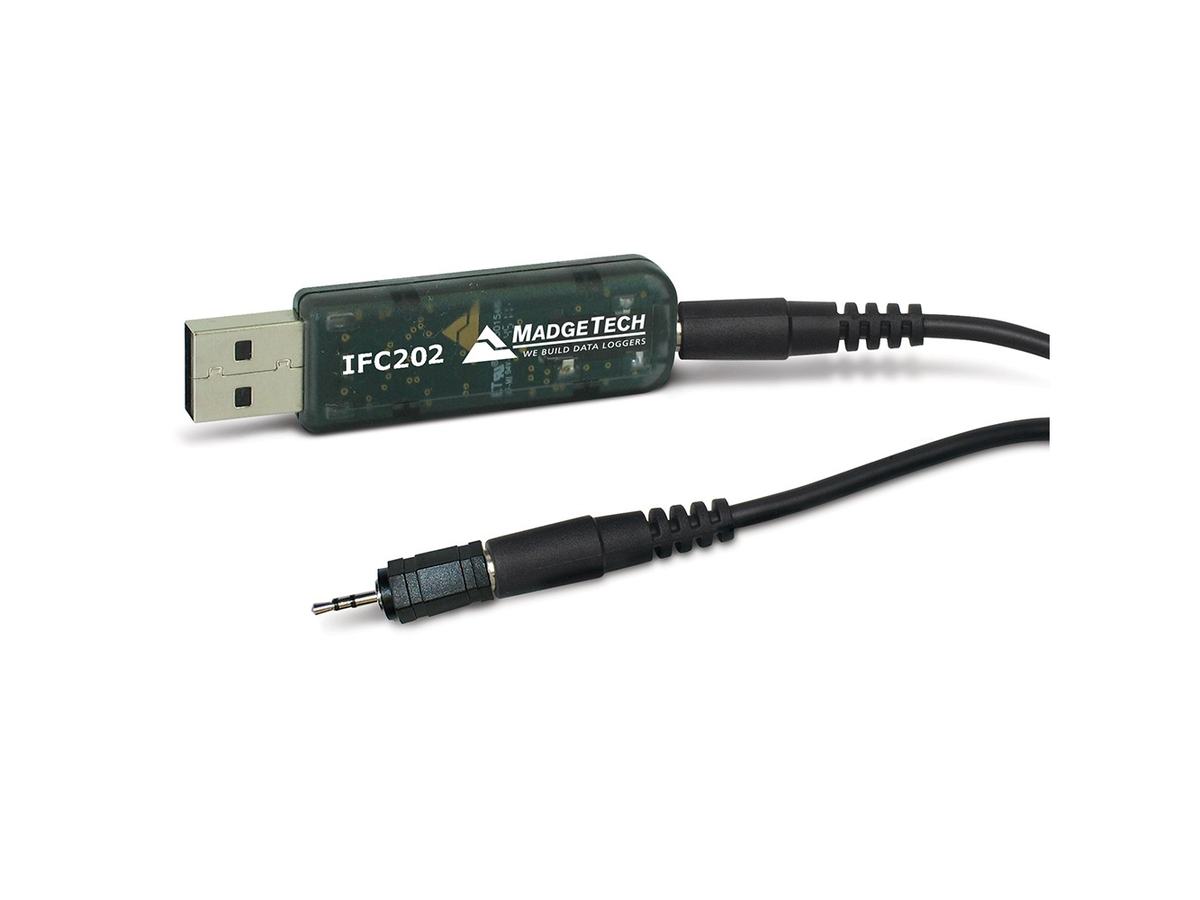
USB Interface Cable Package for the Micro Series Data Loggers.
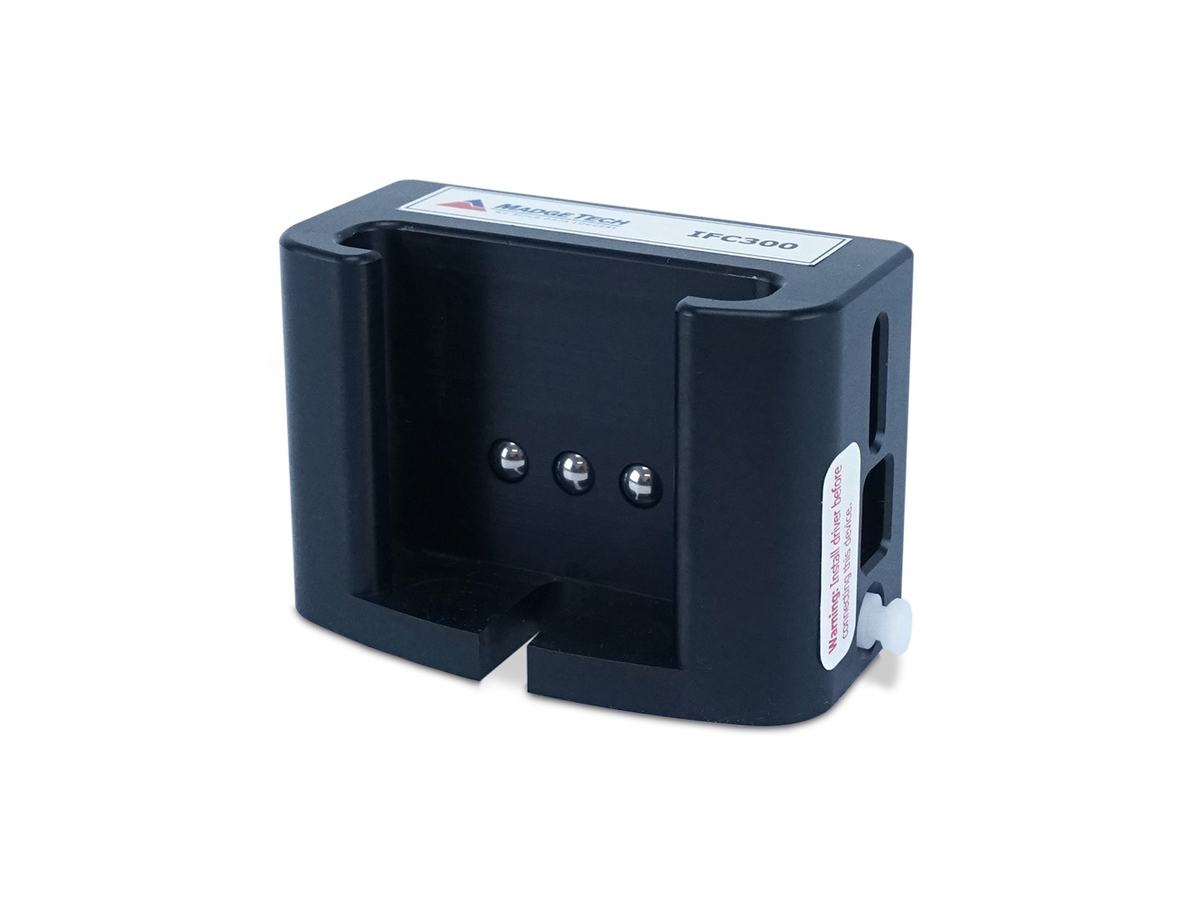
Interface Cable Package for the LyoTemp, TransiTempII and CryoTemp Series Data Loggers.
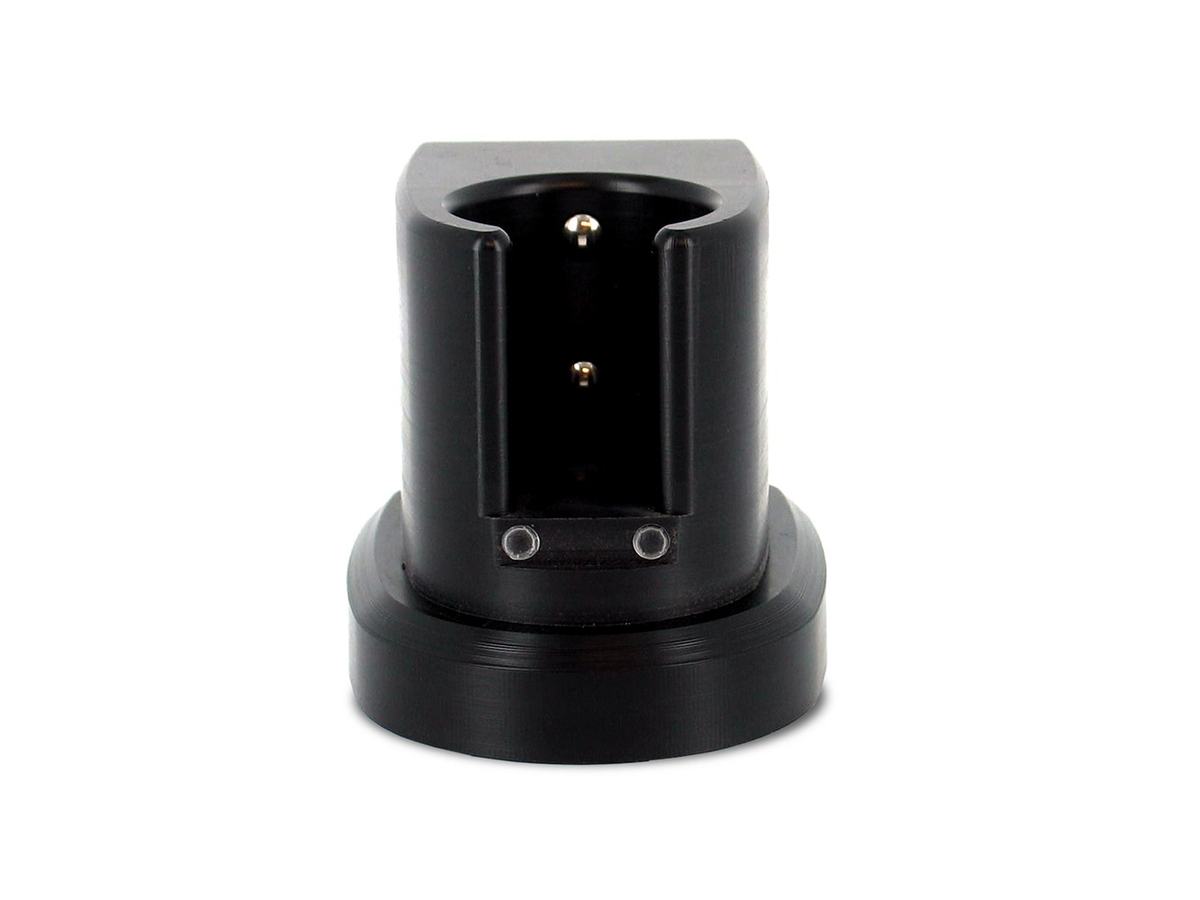
Interface Cable Package for the HiTemp140 and PR140 Data Loggers.
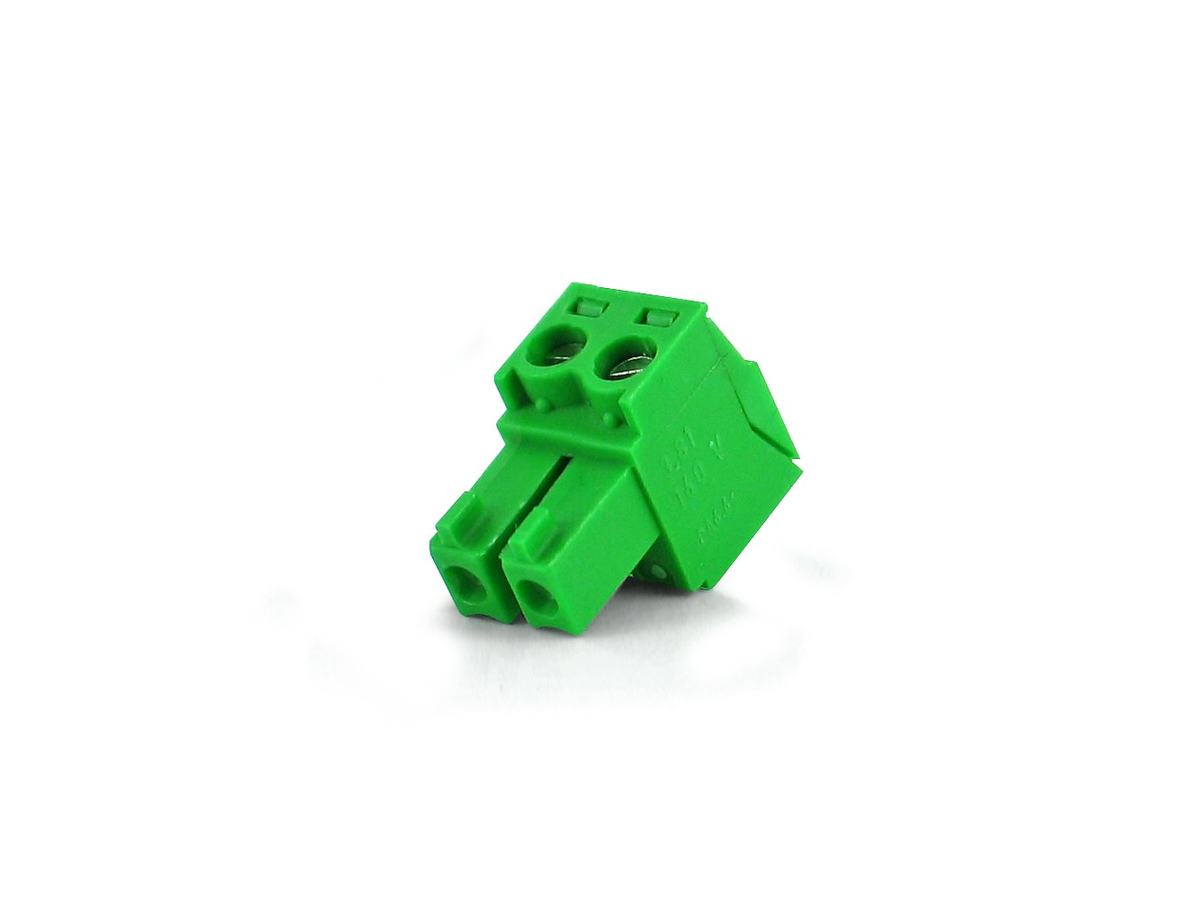
2 position, pluggable terminal block for use with MadgeTech data loggers.

La Punto de Rocío y Temperatura DMP5 Vaisala DRYCAP® está diseñada para la medición de humedad en línea en aplicaciones de secado industrial con…

El Dr. Lauri Reuter es una experta en el futuro de los alimentos y la persona a quien preguntar si alguna vez te has preguntado qué vamos a comer en…

Las empresas industriales continúan tomando medidas para minimizar sus emisiones de carbono. Muchos están reduciendo el uso de combustibles fósiles y…
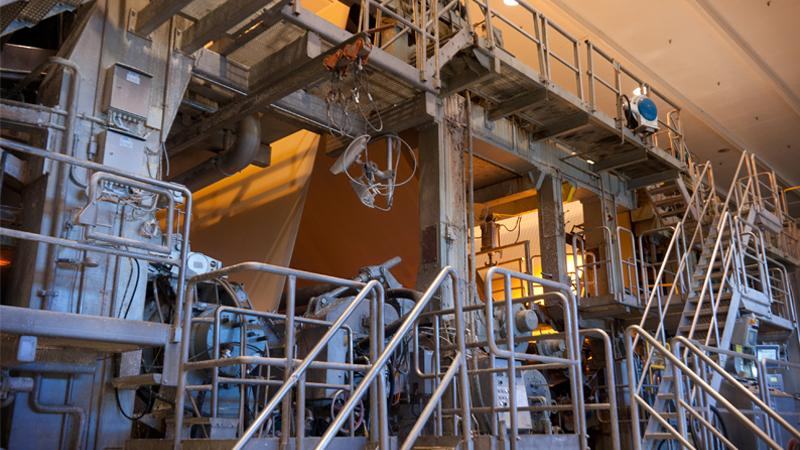
En el proceso de caustificación, los químicos pasivos se convierten en químicos de cocina activos para producir licor blanco. Se utiliza en el…
Un especialista responde con la solución, el instrumento y el servicio que corresponden.
Productos para cotizar
Todavía no hay productos. Se puede escribir igual: un especialista responde.