


Bringing out the beauty of wood: Veneer drying with humidity control
Vaisala DRYCAP® Dew Point and Temperature Probe DMP5 is designed for in-line humidity measurement in industrial drying applications with high…
Technical note
Opening programs automatically can be done with relative ease in Windows 10, and the MadgeTech 4 software is no exception.
To find the ‘Startup’ folder, right-click on the Windows Start button on the taskbar and select ‘Run’. A small window will appear with a single text field labeled ‘Open:’. In this ‘Open:’ box, copy and paste the text below, or type the following with no spaces, and then click then click ‘OK’:
shell:startupAfter this step, Windows ‘File Explorer’ will open to reveal the ‘Startup’ folder. Return to the desktop and drag the second MadgeTech 4 shortcut into this ‘Startup’ folder.
Vaisala DRYCAP® Dew Point and Temperature Probe DMP5 is designed for in-line humidity measurement in industrial drying applications with high…

Dr. Lauri Reuter is an expert in the future of food, and the person to ask if you’ve ever wondered what we are going to eat in the future, and how…

Industrial companies are continuing to take action to minimize their carbon emissions. Many are reducing their use of fossil fuels and switching to…
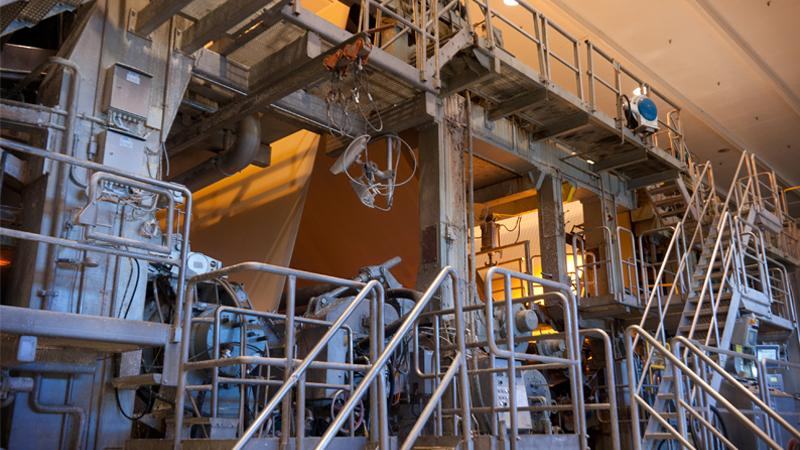
In the causticizing process, passive chemicals are converted into active cooking chemicals to make white liquor. This is used in the digester as a…
A specialist replies with the solution, the instrument and the service that fit.
Products to quote
No products yet. An enquiry can be sent anyway: a specialist answers.